Why Firestick is the Most Popular Choice for Modern Streaming
When transitioning from traditional cable television to a digital broadcasting platform, selecting the right physical hardware is absolutely essential. While many users initially attempt to use the built-in operating systems included with their smart televisions, they quickly encounter sluggish menus and significant app restrictions. The Amazon Fire TV Stick has emerged as the definitive hardware choice for cord-cutters globally, offering an incredibly powerful, affordable, and flexible environment. Because it operates on a highly customizable Android-based operating system, it allows users to safely bypass standard app store limitations and install third-party applications securely.
The core appeal lies directly in its unmatched accessibility. You do not need to be a technical expert to configure the device; the plug-and-play nature means anyone can get started with a premium platform in a matter of minutes. Furthermore, the massive ecosystem of compatible applications ensures that everything from global sports networks to highly specific niche VOD catalogs can be centralized on one single device. For those looking to fully modernize their living room entertainment without spending hundreds of dollars on complex, proprietary cable boxes, mastering this specific streaming device is the perfect first step.
Balancing Upfront Hardware Costs with Processing Power
Decoding high-definition, live video feeds requires significant, continuous computational power. Older, budget-tier streaming sticks frequently overheat, leading to dropped frames and highly frustrating video stuttering during fast-paced sports. When upgrading your setup, it is highly recommended to invest slightly more in the 4K Max model. This minor initial investment guarantees a vastly superior processor and expanded memory capacity, ensuring that the interface remains incredibly smooth and responsive, even when rendering demanding, ultra-high-definition broadcasts.
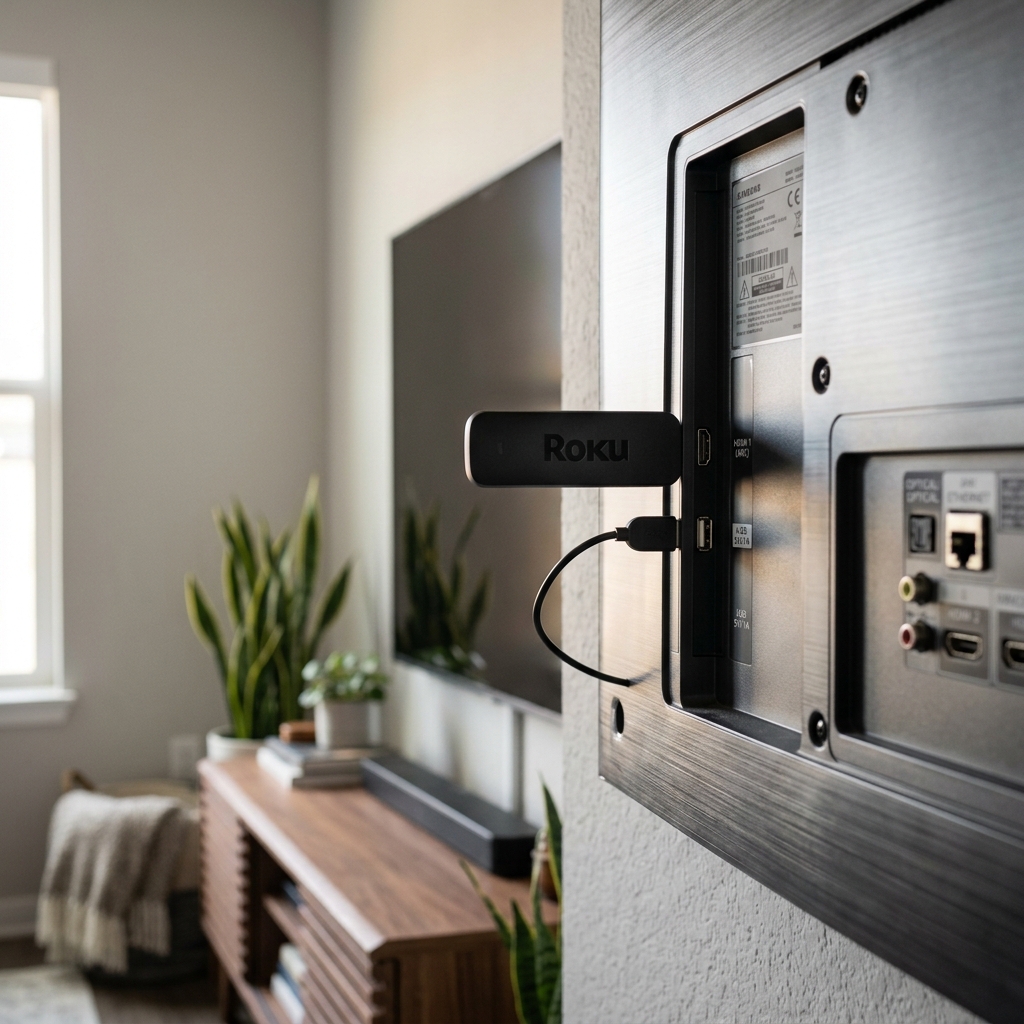
Preparing Your Firestick Device for Third-Party Applications
Before you can actually begin installing your new streaming software, you must adjust a critical security setting deeply embedded within the operating system. By default, Amazon severely restricts users strictly to applications officially approved and hosted on their proprietary app store. While this heavily curated walled garden is fine for basic applications like Netflix, truly unlocking the full potential of digital broadcasting requires "sideloading" specialized media players. Sideloading simply refers to the incredibly common practice of manually installing an Android application package (APK) directly from a trusted, external source.
This process is entirely safe and fully supported by the operating system, provided you are downloading applications from highly reputable providers. To prepare your device, you must navigate to the primary Settings menu, scroll over to "My Fire TV," and locate the "Developer Options." If you are using a newer model and this specific menu is mysteriously hidden, you can quickly reveal it by clicking the "About" section and rapidly pressing the select button seven times on your remote. Once exposed, simply toggle "Apps from Unknown Sources" to the ON position. This vital step effectively unlocks the hardware, allowing you to proceed with the manual installation process.
How to Safely Enable Apps from Unknown Sources
Once Developer Options are fully enabled, you might see a brief security warning advising caution; this is standard procedure. Acknowledging this prompt officially grants the system permission to execute third-party APK files. If you are ever unsure about which specific hardware model or generation you currently own, reviewing a comprehensive hardware guide on the best streaming devices can provide immense clarity and confirm that your equipment is fully capable of handling these specialized installations safely.
Downloading and Installing the Downloader Utility App
With the critical security permissions now successfully granted, the next essential phase requires acquiring a specialized utility tool. Because there is no traditional web browser optimized for downloading files directly to the stick, the community relies heavily on an incredibly useful application appropriately named "Downloader." This tool completely bridges the gap, allowing users to type in direct URLs or shortcodes and instantly fetch APK files straight to their device's internal storage. Fortunately, this specific utility is officially hosted and readily available right on the Amazon App Store.
To acquire it, simply navigate back to the primary home screen, highlight the magnifying glass search icon, and verbally or manually search for "Downloader." It typically features a distinctive orange logo with a prominent white directional arrow. Select the application and click the "Download" or "Get" button. Once the installation process completes, immediately open the application and ensure you click "Allow" when it aggressively prompts you for permission to access photos, media, and files on your device; denying this mandatory permission will completely prevent the utility from successfully saving and executing the installation packages you need.
A Step-by-Step Sideloading Walkthrough
Inside the Downloader interface, you will clearly see a primary URL text box prominently displayed. This is where you will carefully input the direct download link or specific shortcode provided directly by your chosen streaming service. Once the correct sequence is meticulously entered, click "Go." The application will seamlessly connect to the external server, instantly download the required APK file, and automatically prompt you with an installation screen. Click "Install" and wait briefly for the confirmation message to appear.
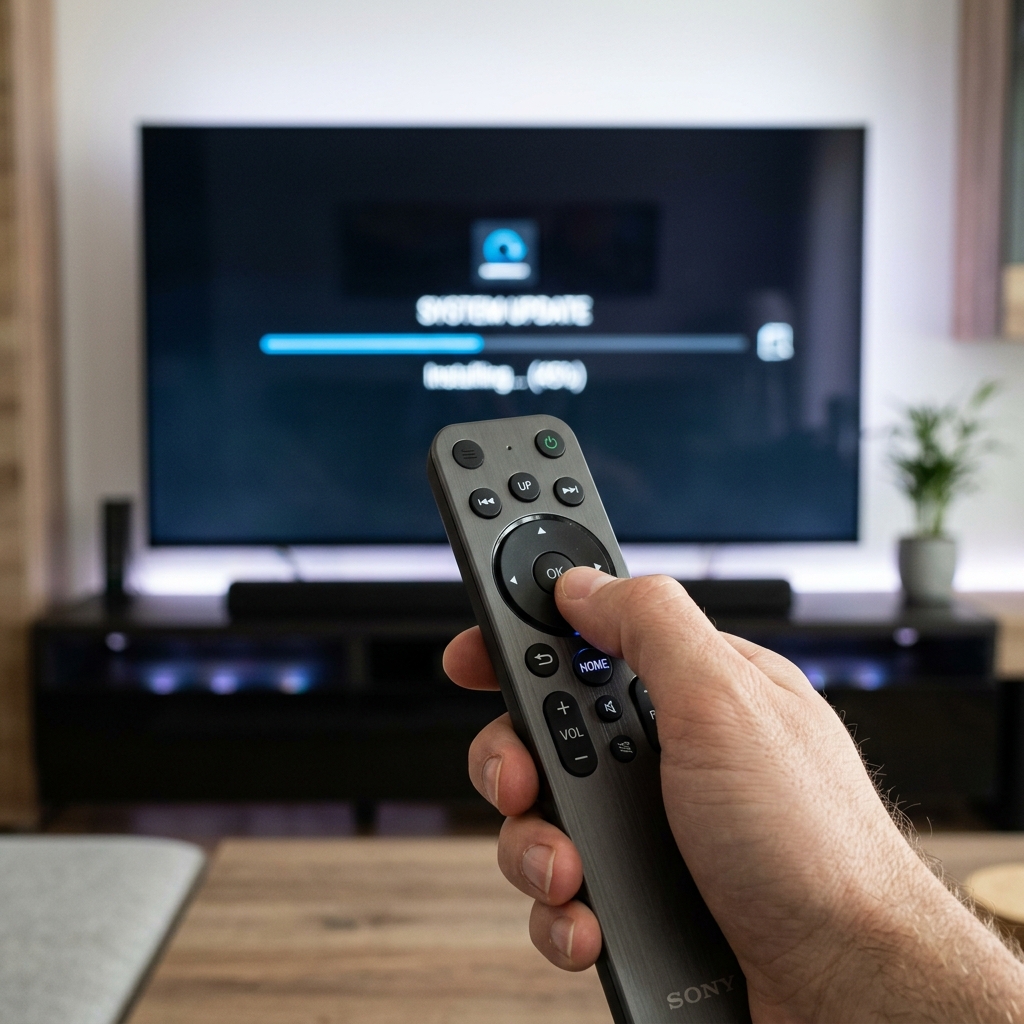
Entering Your Premium Subscription Details
After successfully installing your newly acquired media player, the final critical step is securely linking it directly to your official subscription account. When you initially open the freshly installed software, you will typically be greeted by a blank interface demanding your specific server credentials. This highly sensitive information is always provided directly by your chosen provider, usually delivered via a comprehensive welcome email immediately following your purchase. The credentials effectively authenticate your unique account and authorize the application to securely access the massive, encrypted server infrastructure.
There are two primary methods for inputting these details, depending heavily on the specific software architecture you installed. The most common and user-friendly method utilizes the Xtream Codes API, which simply requires you to enter a Username, a Password, and a designated Server URL. The alternative, slightly older method involves pasting a massive M3U playlist link. Regardless of the required format, extreme precision is absolutely vital. A single mistyped character, incorrect capitalization, or an accidental trailing space will completely prevent the software from successfully authenticating, leaving you with an incredibly frustrating error screen.
How to Configure Xtream Codes API and M3U Playlists
For the smoothest possible experience, we strongly recommend utilizing the Xtream Codes API format whenever supported, as it dramatically improves channel categorization and significantly speeds up Electronic Program Guide (EPG) loading times. If you are currently feeling overwhelmed by the sheer number of available media players and need help selecting the perfect interface, reviewing a detailed breakdown of the best apps for smart TV and Firestick will ensure you select software that perfectly matches your personal aesthetic and functional preferences.
Troubleshooting Common Installation and Launch Errors
Even when meticulously following every single step, users occasionally encounter highly frustrating technical roadblocks during the initial configuration phase. The most frequent issue encountered is the dreaded "App Not Installed" or "Insufficient Storage" error message. Streaming sticks inherently possess very limited internal memory capacities. If your device is currently cluttered with dozens of unused games and various legacy applications, the system simply cannot physically allocate enough temporary space to extract and properly execute the new APK file. You must proactively navigate to the "Manage Installed Applications" menu and aggressively delete unused software to free up a minimum of 500MB of storage.
Another incredibly common obstacle is the "Parse Error." This specific error strongly indicates that the APK file you just downloaded is fundamentally corrupt, incomplete, or severely incompatible with your current hardware generation. This usually occurs if your internet connection briefly drops mid-download, or if you accidentally inputted an incorrect URL pointing to an outdated software version. The immediate solution is to delete the partially downloaded file within the Downloader utility, double-check the precise spelling of the URL, and attempt the download sequence again over a fully stable, secure network connection.
Fixing Insufficient Storage and Package Parsing Issues
Maintaining a clean, optimized digital environment is absolutely critical for long-term stability. Always remember to click "Delete" when the Downloader app asks what to do with the raw APK file immediately after a successful installation; keeping the obsolete installation package permanently stored simply wastes highly valuable internal memory. Regular digital maintenance directly prevents performance degradation and ensures the operating system always has enough breathing room to function smoothly.
Optimizing Your Firestick for Buffer-Free Live Viewing
Successfully installing the application and logging in is merely the first major milestone; actively ensuring the subsequent broadcast remains perfectly flawless requires proactive local network optimization. Because live video broadcasting cannot rely heavily on silently buffering content minutes ahead of time, it demands absolute, unwavering connection stability. If your device is positioned extremely far from your primary wireless router, or if there are multiple thick walls severely obstructing the Wi-Fi signal, you will inevitably experience incredibly frustrating stuttering, pixelation, and dropped frames during peak viewing hours.
To definitively guarantee a truly cinematic experience, you must prioritize a direct physical connection. Utilizing an affordable OTG Ethernet adapter allows you to completely bypass the notoriously unreliable wireless receiver and plug your device directly into your home router. This single, inexpensive hardware modification instantly eliminates wireless interference and dramatically lowers data latency. Furthermore, if you notice your speeds mysteriously plummeting specifically during major sporting events, your telecom provider might be intentionally throttling your bandwidth. Learning exactly how to stop your stream from buffering and stuttering will drastically improve your viewing sessions and permanently eliminate connection anxiety.
The Importance of Network Stability and Privacy Tools
Ultimately, a premium broadcasting experience relies completely on the incredibly fragile data chain between the host server and your television. By properly hardwiring your device and occasionally utilizing encrypted tunneling to bypass intentional ISP restrictions, you firmly take control of this connection. Once your entire setup is fully optimized and securely locked in, the only step remaining is exploring the cost-effective subscription tiers available and enjoying thousands of hours of flawless entertainment.
Start Streaming with Krooz TV
Ready to upgrade your entertainment? Get instant access to thousands of live channels, premium sports networks, and a massive VOD library.
Get Started Today